Beginner's Guide to Pineapple Academy
Jump Right In
Step 1.
Get ready-to-use training.
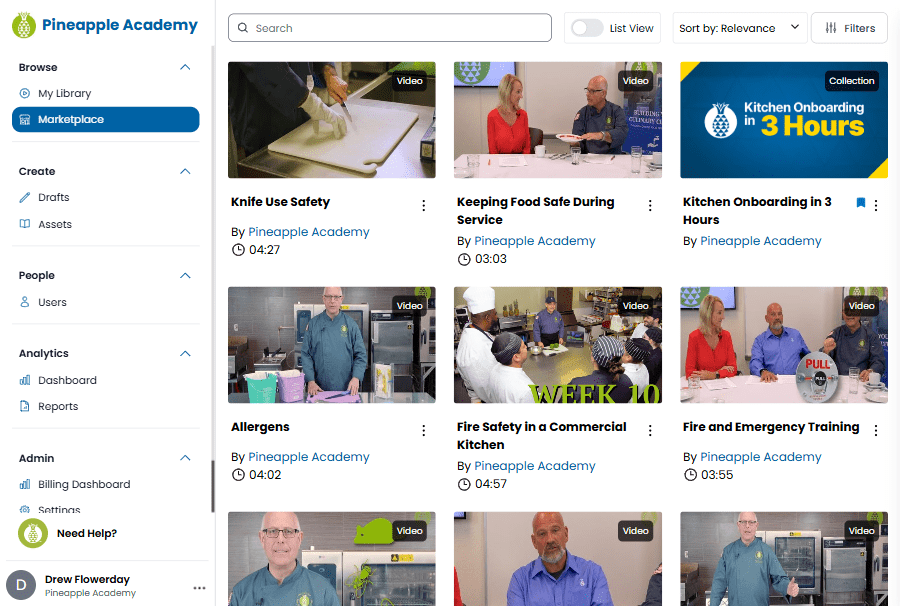
Browse the Marketplace to find ready-to-use, microlearning training that fits your team.
Add courses, videos, and collections to your Library with just a click.
Step 2.
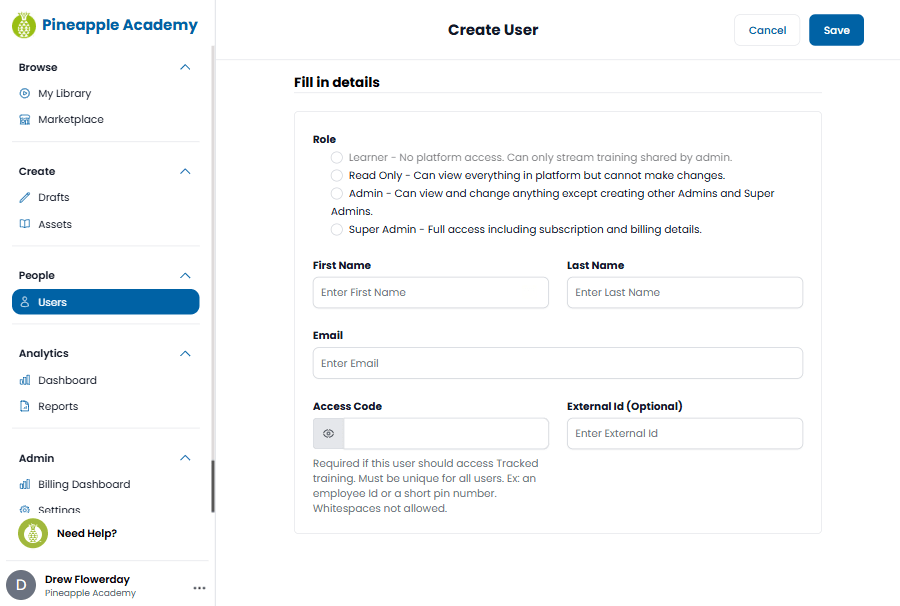
Setup your team as users.
Add each employee as a User in the platform under People.
Each user will need a unique access code for easy tracking and Reporting.
Step 3.
Share with your team.
Each training in your Library can be shared via QR codes, PDFs, and links.
Print or send the link to your training to get your team started!

Quick Start
Need more detail? Using this guide, you should be able to quickly understand how Pineapple Academy’s platform works to curate, share, and report on training for your team.
To log in to the platform and get started, navigate to https://app.pineappleacademy.com, enter your email address, and click on the login link that is emailed to you.
If you do not receive an email to login directly, you can resend the email or use a password. Please check your Spam/Junk folder if you do not receive an email within 10 minutes.

Kitchen Onboarding in 3 Hours
Everything your kitchen team needs. Nothing they don't.

Don't see what you're looking for?
If you have any questions, or want to know more about additional features, don’t hesitate to contact our team.
"*" indicates required fields
Trusted by these teams.